Introduction
In modern, simplified desktop environments, the boundary between data hubs and power supplies is increasingly blurred. One of the most common questions professional users ask when upgrading their workstations is: Can a Docking Station effectively replace a bulky original laptop power adapter? From a technical standpoint, while modern docks generally support host charging, their specific capabilities strictly depend on the PD Protocol version (Power Delivery), Power Throughput (Wattage), and Cable Bandwidth.
This guide delves into the technical requirements of "One Cable" power delivery and guides you on matching the best power configuration for your workstation.
Core Mechanism: How Do Docks Deliver Power?
Unlike traditional passive USB hubs that draw power solely from the laptop, Active Docking Stations utilize independent external AC/DC power adapters to power both peripherals and the host computer simultaneously. This process is achieved via the USB Power Delivery (PD) protocol, which performs a smart handshake over USB-C or Thunderbolt interfaces to dynamically manage voltage and current allocation.
Critical Checklist: Ensuring "Full Speed" Charging
To achieve a "Data Transfer + Power Supply" single-cable solution, you must verify the following three technical indicators:
1. Protocol Handshake (PD 3.0/3.1) The dock must explicitly support the Power Delivery standard. Ordinary USB-C ports that do not support PD can only transmit data. Ensure the dock's host interface is marked with a battery icon or "PD," indicating it acts as a Source rather than just a Sink.
2. Power Headroom (Wattage) Insufficient power is the most common cause of charging failure. Standard Ultrabooks typically require 45W-65W, while high-performance workstations (like the MacBook Pro 16" or mobile workstations) require 85W or even 100W+.
Rule of Thumb: The docking station's "Host Charging" output must be equal to or greater than the laptop's original charger rating. If a dock offers only 60W but the laptop requires 96W, the system may experience "battery drain" under high load (Hybrid Power Mode).
3. Cable Integrity (E-Marker Chip) Charging failures often stem from cabling. High-power charging (60W-100W) requires USB-C or Thunderbolt cables with built-in E-Marker chips. This chip reports the cable's safe current capacity (e.g., 5A) to the motherboard. Using ordinary pure data cables will trigger safety limits, drastically reducing charging speed.
Hardware Analysis: High-Bandwidth Power Solutions
For professional scenarios requiring simultaneous high-speed data transmission and stable power, hardware specifications must meet USB4 or Thunderbolt standards.
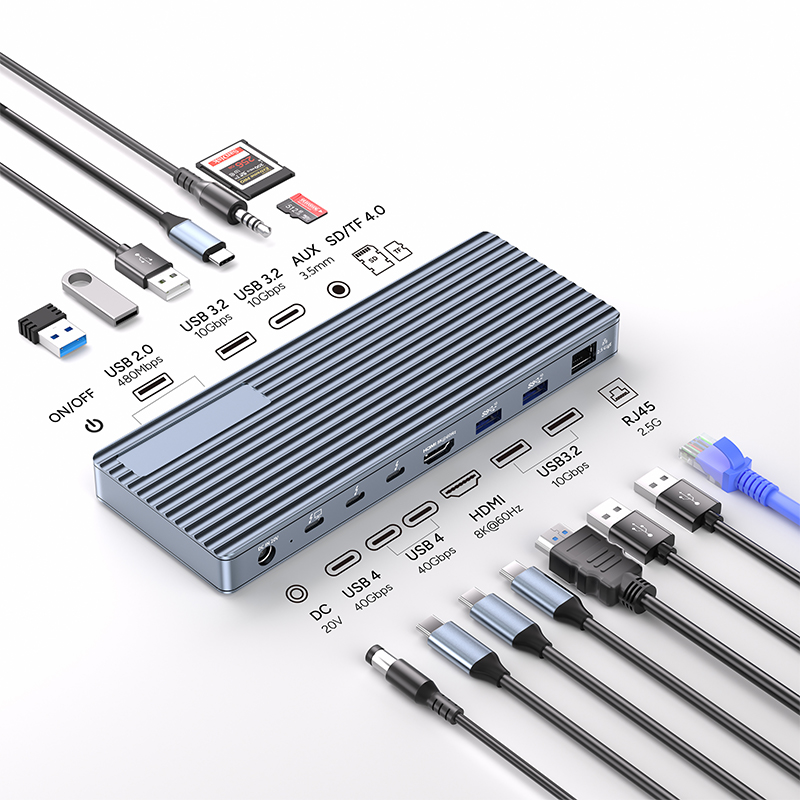
Using the PURPLELEC 40Gbps High-Performance Docking Station as a technical reference, here is how productivity-grade specs perform in actual workflows:
1. Core Power Architecture The device uses an independent 20V DC input, physically isolating the dock's own power consumption from the host's power supply. This thermal isolation design allows it to stably output 85W PD Host Charging, sufficient to keep most 15/16-inch laptops fully charged under heavy rendering or compiling loads.
2. Bandwidth & Display Unlike standard USB-C hubs, this architecture utilizes USB4/Thunderbolt compatible (40Gbps) ultra-high bandwidth. This bandwidth headroom supports complex display arrays—up to Single 8K@30Hz or Triple 4K configurations—without crowding out the power required for charging.
3. Peripheral Matrix
- Data Layer: 2x Type-C ports (Thunderbolt/USB4 40Gbps compatible, supporting 15W peripheral power), 3x USB-A 3.2 Gen2 (10Gbps high speed), and 2x USB-A 2.0 (designed for low-interference devices like mice/keyboards).
- Connectivity: 1x RJ45 Gigabit Ethernet (10M/100M/1000M) ensuring zero packet loss.
- Multimedia: SD/TF 3.0 Card Slots (up to 104Mb/s) for rapid footage export; equipped with a 3.5mm audio jack.
- Video Output: 1x HDMI port, supporting video output up to 8K@60Hz.
This configuration perfectly interprets the "One Cable Solution" concept: handling 85W power, 40Gbps data throughput, and 8K video output simultaneously via a single cable.
Setup Steps: Optimizing the Power Link
1. Power First: Connect the dock's DC power adapter to the wall outlet first. Wait for the dock's status LED to stabilize.
2. Cable Selection: Use the included 40Gbps cable (or a certified Thunderbolt 3/4 cable). Connect it to the port marked "Host" or "Computer" on the dock.
3. Port Identification: Plug the other end into the laptop's Thunderbolt port or Full-Featured USB-C (PD) port. Note: On some Windows laptops, not all USB-C ports support charging; look for lightning bolt or plug icons.
4. Status Verification: In the Windows Taskbar or macOS Menu Bar, the battery icon should show "Plugged in / Charging."
Troubleshooting: Why Won't It Charge?
If the "Plugged in" icon does not appear, follow this logic:
- Insufficient Power Budget: If the dock lights up monitors but won't charge the PC, the Power Supply Unit (PSU) may be maxed out. Ensure Dock PSU Total Power > (Laptop Demand + Peripheral Demand).
- Driver Handshake Failure: Outdated Thunderbolt drivers or BIOS/UEFI firmware may prevent the PD handshake. Visit the laptop manufacturer's site to update "Thunderbolt Firmware."
- Protocol Mismatch: Using USB-A to USB-C adapters breaks the PD communication link. High-power charging requires a direct C-to-C connection.
Conclusion
Docking stations have evolved from simple port replicators to central desktop power hubs. Devices like the PURPLELEC USB4 Docking Station prove that users no longer need to choose between I/O expansion and power supply. As long as you ensure your dock supports at least 85W Host PD Charging and 40Gbps Bandwidth, you can build a future-proof, high-performance workstation connected by a single cable.
FAQ (Technical)
Q: Can a 100W dock charge a laptop that requires 140W?
A: Yes, but with limitations. The laptop will negotiate for the maximum available power (e.g., 85W or 100W). Under extreme dual CPU/GPU stress loads, the battery may slowly discharge to compensate for the power gap (Hybrid Power Strategy), but for regular office scenarios, it will charge normally, just slightly slower.
Q: Does the PURPLELEC dock support 8K video on macOS?
A: macOS has specific limitations on Multi-Stream Transport (MST). While the hardware supports 8K@60Hz via HDMI, Mac users must verify their specific M-series chip specifications to validate the maximum supported external resolution.
Q: Why does the dock get hot during charging?
A: Energy conversion inevitably generates heat. When converting wall AC to DC for the laptop (e.g., outputting 85W) while processing 40Gbps high-speed data traffic, the aluminum alloy casing acts as a heatsink for passive cooling. This is normal operating behavior for high-bandwidth docking stations.