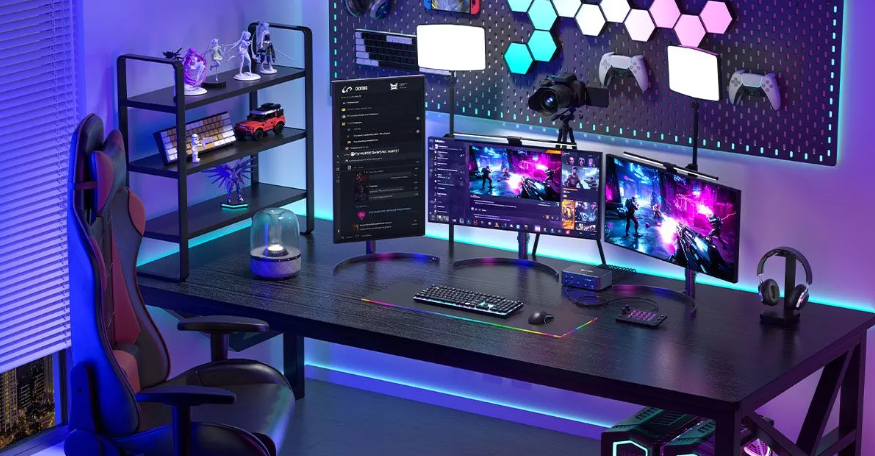
In modern digital workspaces, single-screen operations have become a primary bottleneck for multitasking efficiency. Frequent window switching not only interrupts workflow momentum but also increases cognitive load. Deploying a multi-screen system via a Laptop Docking Station has become the standard solution for professionals seeking to maximize productivity. This guide analyzes the hardware principles, configuration processes, and selection strategies required to build a stable triple-screen environment.
I. Core Value: The Role of Docking Stations in Multi-Screen Interaction
Restricted by chassis size, native laptop ports often fail to meet multi-screen output demands. A dual monitor docking station achieves the aggregated transmission of data, video signals, and power delivery through a single USB-C or Thunderbolt cable.
Constructing a "Laptop + Dual External Monitors" triple-screen array essentially physically partitions the workflow:
- Communication Layer: The native laptop screen serves as a dedicated zone for Instant Messaging (IM) and email processing.
- Production Layer: The primary external monitor hosts core productivity software (e.g., code editors, design canvases).
- Reference Layer: The secondary external monitor is used for consulting documentation, data dashboards, or asset previewing.
This logic of physical partitioning effectively eliminates the operational loss caused by "window overlap."
II. Hardware Compatibility Checklist
Before deploying equipment, it is mandatory to verify the protocol specifications of the host ports, as this is the prerequisite for video output. Please verify the following core metrics:
1. USB-C Protocol Specifications: The port must support DisplayPort Alt Mode. Standard USB-C ports that only support data transfer cannot output video signals.
2. Bandwidth & Protocol Version: To drive dual 4K monitors, it is recommended that the host supports Thunderbolt 3/4 or USB4 protocols to ensure sufficient bandwidth.
3. System Environment: Confirm the operating system version (Windows 10/11 or macOS 10.14+). Note: Base model MacBooks with M1/M2 chips may support only a single external display; please check official technical documentation.
III. Hardware Deployment and Connection Process
A complete solution includes: a docking station supporting Multi-Stream Transport (MST), two monitors, high-spec video cables (HDMI/DP), and a full-featured USB-C upstream cable.
Step 1: Physical Layout & Ergonomics
A "hierarchy-based" layout strategy is recommended. Place the laptop to the side or elevate it on a stand, using the two external monitors as the primary visual area. Screen height should be adjusted to eye level or 10-15 degrees lower, with side monitors angled inward at 30-40 degrees to reduce cervical spine rotation pressure.
Step 2: Link Connection
1. Video Signal: Connect the monitors to the docking station’s HDMI or DisplayPort interfaces respectively.
2. Peripheral Mounting: Connect keyboard, mouse receivers, and wired Ethernet to the dock’s USB/RJ45 ports.
3. Host Handshake: Finally, connect the laptop using the USB-C upstream cable. Note: Ensure connection to the laptop port marked with a "Lightning" or "DP" icon.
Step 3: System Configuration
1. Windows Environment: Go to "Settings > System > Display." After identifying the monitors, drag the icons to arrange their positions and ensure the mode is set to "Extend these displays."
2. macOS Environment: Go to "System Settings > Displays > Arrange" to adjust the logical position of screens to match their physical placement.
IV. Critical Technical Specifications for Dock Selection
Not all docking stations can stably drive dual screens. When purchasing, focus on the following parameters:
1. Video Bandwidth & Refresh Rate
Prioritize products equipped with dual HDMI or an HDMI+DP combination. For advanced users, ensure the docking station supports 4K @ 60Hz output. If the spec is limited to 30Hz, rapid page scrolling or mouse movement will cause noticeable ghosting and stuttering, exacerbating visual fatigue.
2. PD Power Delivery
Choose a docking station that supports PD Charging, with a recommended power output of at least 85W (for ultrabooks) or 100W (for mobile workstations). This ensures full-speed charging for the laptop while driving peripherals, achieving a minimalist "one-cable" desktop. Some high-end 13-in-1 docking stations even feature LCD screens for real-time power monitoring.
3. Thermal Design & Materials
Running multiple ports at full load (especially involving video encoding/decoding and PD charging) generates significant heat. Prioritize products with aluminum alloy casings and rational airflow designs to avoid throttling or disconnection caused by overheating.
V. Frequently Asked Technical Questions (FAQ)
Q1: Why is there no signal on the monitors after connecting the dock?
A1: This is usually because the laptop's USB-C port does not support video output functions (i.e., lacks DP Alt Mode). Secondly, check if the cables support the current resolution standard, or try updating the graphics driver.
Q2: What is the difference between a Docking Station and a USB Hub?
A2: A USB Hub is typically used only for expanding USB data ports and lacks independent power supply and multi-screen display control chips. A Laptop Docking Station features independent video processing capabilities and power management modules, designed specifically for multi-screen desktop environments, offering far higher stability than a hub.
Q3: Will dual-screen output lower computer performance?
A3: It will consume specific GPU resources. The integrated graphics of modern laptops (such as Intel Iris Xe or Apple Silicon) are sufficient for dual-screen output in office scenarios. However, for 3D rendering or high-load editing, use with a model equipped with a dedicated graphics card is recommended.