In modern workspace environments, the single-screen limitation of ultrabooks often becomes a bottleneck for productivity. While processors have become faster, the physical screen real estate remains static. This is where the integration of a laptop docking station and dual monitors becomes essential.
For professionals in finance, design, and coding, extending a desktop across two external screens is not a luxury—it is a workflow necessity. This guide analyzes the technical requirements, interface standards, and configuration logic needed to build a stable dual-monitor setup.
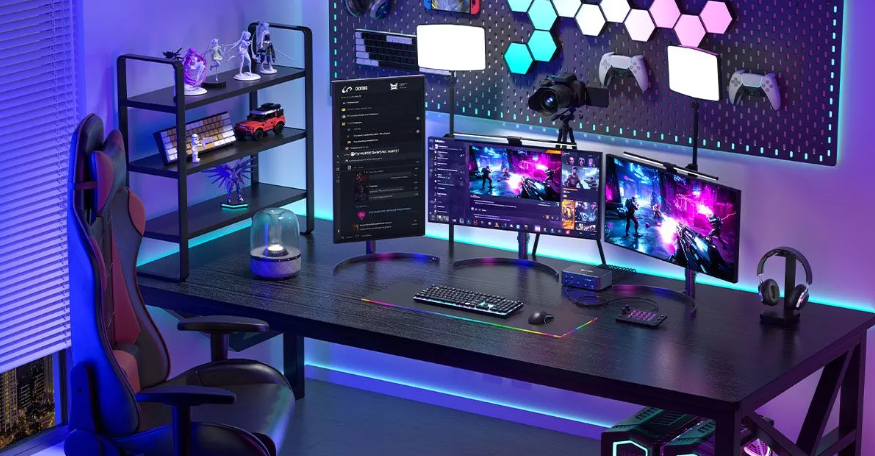
The Technical Necessity: Why Direct Connection Fails
Most contemporary laptops, particularly those following the ultrathin design philosophy, lack multiple video output ports. You might find a single HDMI port or, in many cases, only USB-C ports.
Connecting a laptop docking station and dual monitors solves this hardware deficit through a "One-Cable Solution." By leveraging high-bandwidth protocols like USB 3.0, USB-C (Alt Mode), or Thunderbolt, the dock acts as a signal splitter and power distributor. It processes the video signal from the host laptop and allocates it to separate HDMI or DisplayPort interfaces, allowing for a seamless extended desktop experience.
Key Protocols: Understanding MST vs. SST
When selecting hardware, one technical distinction causes the most confusion: Multi-Stream Transport (MST) versus Single-Stream Transport (SST). Understanding this is critical for a successful laptop docking station and dual monitors configuration.
MST (Multi-Stream Transport):
- Function: Allows the operating system to view each connected monitor as a separate display. This enables "Extended Mode" (different content on each screen).
- OS Support: Windows OS fully supports MST. This is the standard requirement for most PC users.
SST (Single-Stream Transport):
- Function: Forces the video signal to be identical across all outputs. This results in "Mirrored Mode" (same content on all screens).
- MacOS Limitation: Standard USB-C docking stations often default to SST on macOS. MacBook users specifically need to look for DisplayLink-certified docks or Thunderbolt-based solutions to achieve true dual-screen extension.
Bandwidth and Resolution: The 4K@60Hz Challenge
Simply having enough ports does not guarantee image quality. The total bandwidth of the connection determines the resolution and refresh rate.
A standard USB-C Gen 1 connection (5Gbps) may struggle to drive a laptop docking station and dual monitors at 4K resolution simultaneously. Often, the refresh rate will drop to 30Hz, causing noticeable mouse lag and eye strain.
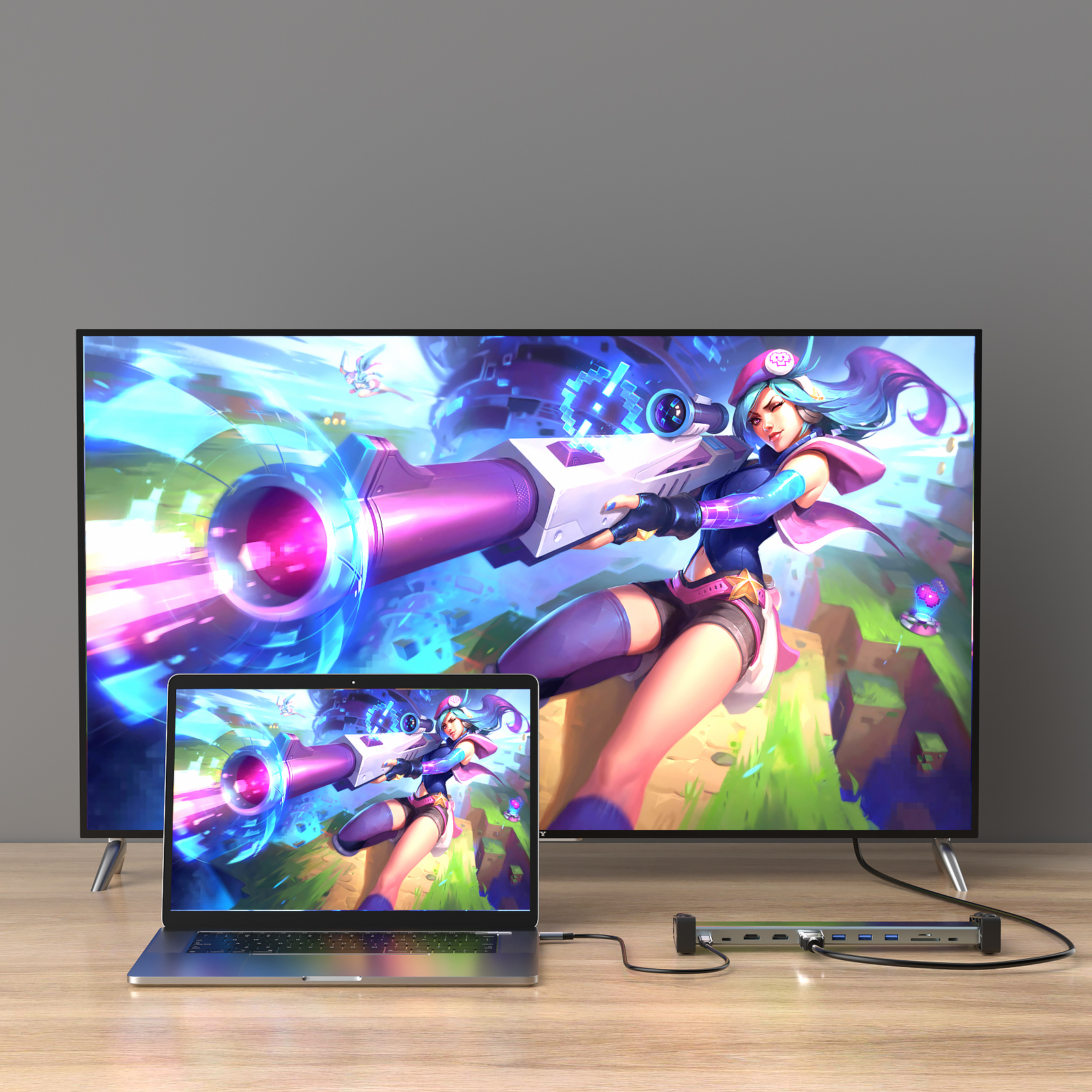
For a professional setup, ensure your docking station and laptop port support at least USB-C with DP 1.4 Alt Mode or Thunderbolt 3/4. These protocols provide sufficient bandwidth (up to 40Gbps) to support dual 4K monitors at a smooth 60Hz refresh rate without compression artifacts.
Interface Selection: HDMI vs. DisplayPort
When setting up your laptop docking station and dual monitors, the choice of video interface matters:
- HDMI: Ubiquitous and compatible with almost all televisions and monitors. However, older HDMI versions (1.4) limit 4K output to 30Hz. Ensure your dock supports HDMI 2.0 or higher.
- DisplayPort (DP): The preferred standard for PC monitors. DP supports higher refresh rates and daisy-chaining capabilities, making it superior for high-performance workstation setups.
Step-by-Step Configuration Guide
To ensure stability, follow this logical sequence when deploying your hardware:
1. Power First: Connect the docking station to its independent power supply (if applicable) before connecting to the laptop. Passive hubs draw power from the laptop, which can be unstable for dual monitors.
2. Cable Quality: Use high-quality HDMI 2.0 or DP 1.4 cables. Inferior cables are the leading cause of flickering screens.
3. Driver Installation: For USB-based docks (non-Alt Mode), ensure DisplayLink drivers are installed and updated.
4. OS Configuration:
- Windows: Right-click Desktop > Display Settings. Select "Extend these displays" under the Multiple Displays section.
- macOS: System Preferences > Displays > Arrangement. Uncheck "Mirror Displays" to extend your workspace.
Conclusion
Deploying a laptop docking station and dual monitors transforms a portable device into a stationary command center. The key lies in matching the docking station’s protocol (USB-C Alt Mode vs. Thunderbolt) with your laptop’s capabilities and ensuring the bandwidth supports your desired resolution. By prioritizing active power supply and correct interface standards, you can eliminate connectivity anxiety and focus on efficient multitasking.









