Many of us have been there: you want to connect two 4K monitors to your laptop and charge it simultaneously, so you grab a cheap "USB converter." The result? Blank screens, "insufficient power" warnings, or even a jittery mouse.
The problem usually isn't the product quality; it's that you might be confusing a USB Hub with a Docking Station.
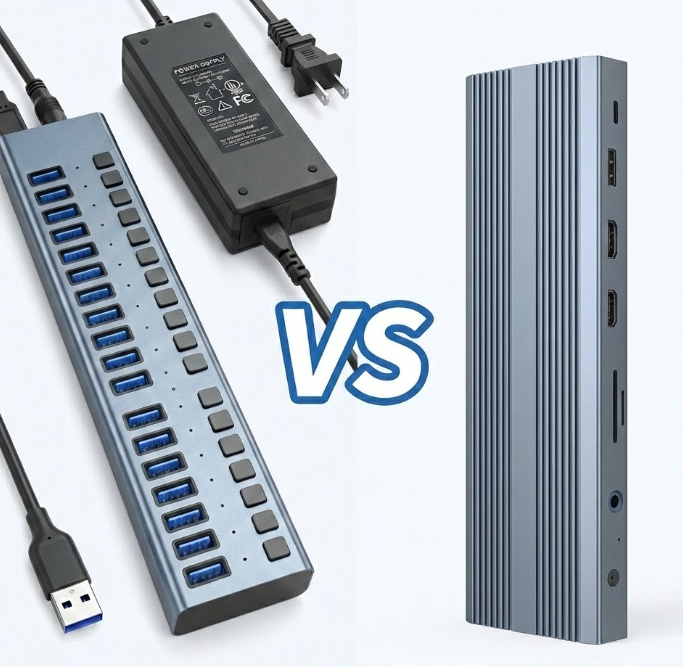
While they look similar and both function to "turn one port into many," they are completely different animals when it comes to performance limits and use cases.
I. USB Hub: The Port "Expander"
Core Definition:
The essence of a USB Hub is "splitting." It’s like a power strip for your data, turning one USB port into 3 or 4.
- Power Method: Passive. It usually lacks an independent power adapter and draws power directly from your computer.
- Performance: Lower bandwidth (typically 5Gbps).
- Typical Scenario: Temporarily connecting a flash drive, mouse receiver, or transferring photos from a camera.
- Limitations: It cannot drive high-power devices. If you plug in multiple portable hard drives, they might disconnect due to insufficient power. It also rarely supports multi-screen high-resolution output.
II. Docking Station: The Desktop "Commander"
Core Definition:
The essence of a Docking Station is "enhancement." It is born to give your laptop desktop-level performance.
- Power Method: Active. It must be plugged into a wall outlet (comes with a large power brick). Instead of draining your laptop's battery, it charges your laptop via the PD (Power Delivery) protocol (60W-100W).
- Performance: Extreme bandwidth. Based on Thunderbolt 4 or USB4 protocols, bandwidth reaches up to 40Gbps.
- Typical Scenario: A "One-Cable Solution" for dual 4K/60Hz monitors + Gigabit/2.5G Ethernet + multiple SSDs + mechanical keyboard.
- Core Value: It is a stationary desktop base. Plug in one cable when you arrive, and you're instantly in work mode; unplug and go when you leave, without disconnecting monitors and cables one by one.
III. Comparison Table: The Core Differences
To help you decide, we compared the key parameters:
| Feature |
USB Hub |
Docking Station |
| Primary Use |
Increasing port count |
Desktop-grade full expansion |
| Portability |
High (On-the-go) |
Low (Stationary desktop use) |
| Video Capability |
Weak (Single screen/Low refresh) |
Strong (Dual 4K or Single 8K) |
| Power Method |
Drains Laptop (Passive) |
Independent Power (Charges Laptop) |
| Data Speed |
Average (5Gbps) |
Ultra-Fast (10Gbps - 40Gbps) |
| Price Range |
Entry Level ($) |
Professional/Enterprise ($$$) |
IV. Buying Guide: Which One Should I Buy?
Choose a USB Hub if:
1. You are a mobile worker who often types in coffee shops.
2. You only need to connect a wireless mouse, USB drive, or occasionally a projector.
3. You have a limited budget and prioritize portability.
Choose a Docking Station if:
1. You are a designer, video editor, programmer, or financial trader.
2. You need a Multi-Monitor Setup.
3. You are tired of the hassle of plugging and unplugging HDMI cables, power cords, and Ethernet cables every day.
4. You need a stable Gigabit/2.5G wired network connection.
Conclusion
Don't expect a cheap USB Hub to perfectly drive your dual-monitor setup. If you are pursuing "Productivity" and "Stability," please save your budget for a professional Thunderbolt 4 Docking Station. It’s not just an accessory; it’s a physical cheat code for your efficient workflow.









