
As laptop designs increasingly prioritize ultra-thin form factors, once-standard ports (such as HDMI, Ethernet, and even USB-A) are gradually disappearing. While this enhances portability for mobile users, it creates "connectivity anxiety" for professionals who need to build efficient workstations.
This is the purpose of the Docking Station. It is not merely an accessory, but the core bridge connecting mobile devices to the desktop ecosystem. This article will deeply analyze the technical principles and core functions of docking stations, and how they reshape your workflow.
1. Core Definition: What is a Docking Station?
From a technical perspective, a Docking Station is an electronic peripheral designed to transform a laptop into a fully functional desktop replacement via a single interface (typically USB-C or Thunderbolt™).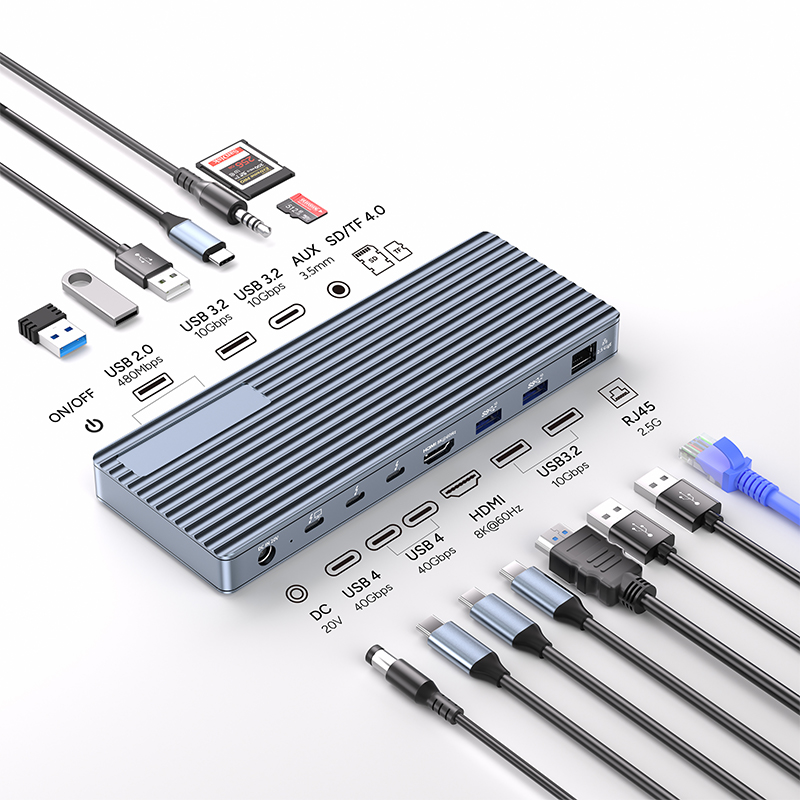
Unlike simple adapters, professional-grade docking stations are usually equipped with independent power supply systems capable of simultaneously handling high-bandwidth video signals, Gigabit/10 Gigabit network data, and high-power electrical transmission. Its core value lies in the "One Cable Solution"—by plugging in just one cable, your laptop immediately connects to two 4K monitors, a wired network, a mechanical keyboard, a mouse, and external storage devices, all while charging the laptop.
2. The Four Core Functions of a Docking Station
A. Multi-Monitor Support
This is the primary reason most users purchase a docking station. Through HDMI or DisplayPort interfaces, it expands the laptop's limited screen real estate to one or more external monitors.
Productivity Boost: High-end docking stations (such as those based on the Thunderbolt 4 protocol) support dual 4K@60Hz or even single 8K resolution output, which is critical for video editors, programmers, and financial traders.
B. Power Delivery (PD)
Distinct from ordinary hubs that rely on the computer's battery for power, docking stations typically support the Power Delivery (PD) protocol. This is often referred to as "pass-through charging."
Pass-through Charging: When you connect the docking station to a power source, it not only drives the hard drives and peripherals connected to it but also provides up to 90W or even 100W of power to the laptop through the data cable. This means you no longer need to unpack your bulky original charger.
C. Data Transfer Hub
Modern workflows cannot exist without high-speed data exchange. Docking stations typically integrate data interfaces of various specifications:
USB-A/C 3.2 Gen 2: Provides 10Gbps transfer speeds, suitable for connecting SSDs.
SD/TF 4.0 Card Slots: Photographers can read high-speed memory cards directly without an extra card reader.
D. Stable Network Connection (Gigabit/2.5G Ethernet)
While Wi-Fi is convenient, wireless instability is fatal when performing large file uploads, accessing NAS data, or conducting online meetings. Docking Stations equipped with an RJ45 Ethernet port provide Gigabit (1Gbps) or even 2.5G wired connections, ensuring low latency and high stability for data transmission.
3. Key Differences: Docking Station vs. USB Hub
This is the concept most easily confused by consumers. Although both appear to have similar functions, their positioning is distinct:
| Feature | USB Hub | Docking Station |
| Portability | Extremely High (Pocket-size) | Stationary (Desktop use) |
| Power Method | Passive (Powered by Laptop) | Active (External Adapter) |
| Performance Cap | Lower (Mouse/Keyboard/USB Stick) | Very High (Multi-Screen/Full Speed) |
| Price Range | Entry Level | Professional/Enterprise |
If you just need to temporarily connect a USB drive, a USB Hub suffices; but if you need to build a fixed, high-performance office desktop, a Docking Station is the only choice.
4. Buying Guide: Protocols Determine Performance
When choosing a Docking Station, the shape of the connector is just the surface; the underlying communication protocol is the key:
USB-C (Universal): Best compatibility, moderate price, typically supports dual 1080P or single 4K display. Suitable for general office use.
Thunderbolt 3/4 (Pro Performance): Built for high-performance needs. Supports ultra-high bandwidth of 40Gbps. If you use a MacBook Pro or a high-end Windows laptop and need to connect multiple high-resolution monitors or high-speed RAID arrays, be sure to choose an Intel Certified Thunderbolt docking station.
Conclusion
The essence of a Docking Station is the "unshackling" of the laptop's physical form. It allows ultrabooks to retain their portability without sacrificing connectivity for the sake of thinness. For modern workers pursuing ultimate efficiency, it is the indispensable command center of the desktop.








